
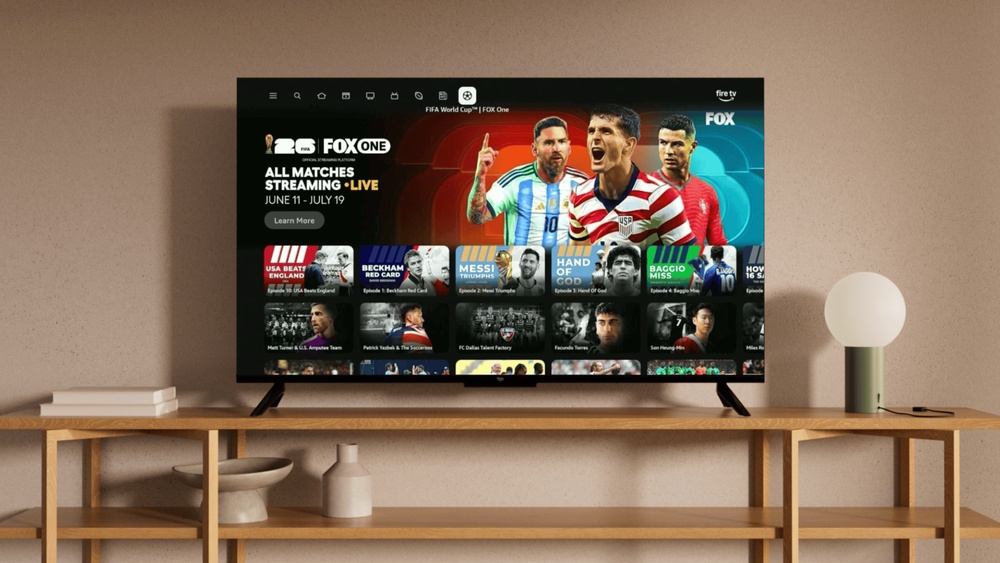
The FIFA World Cup is more than just a sports event it’s a global celebration. Every four years, millions of fans gather to watch the best soccer teams compete. In 2026, the excitement will be even bigger, with more teams and matches, and the tournament hosted across the United States, Canada, and Mexico. If you have a Fire TV Stick, you can turn your living room into a World Cup stadium. But how do you actually watch the World Cup on your device? What options do you have if you live in a different country or want to stream in your own language?
This guide will help you understand every step, from setting up your Fire TV Stick to choosing the right apps and services. You’ll learn about legal streaming choices, how to avoid common mistakes, and ways to get the best viewing experience. Whether you’re a soccer fan or just want to enjoy the world’s biggest sporting event, this article will make sure you don’t miss a single goal.
Exclusive Amazon Early Sales & Discounts!
Save big with limited-time price drops across top-rated kitchen essentials, tools, auto parts, and accessories on Amazon.
⚡ Shop Prime Big Deal DaysUnderstanding The Fire Tv Stick
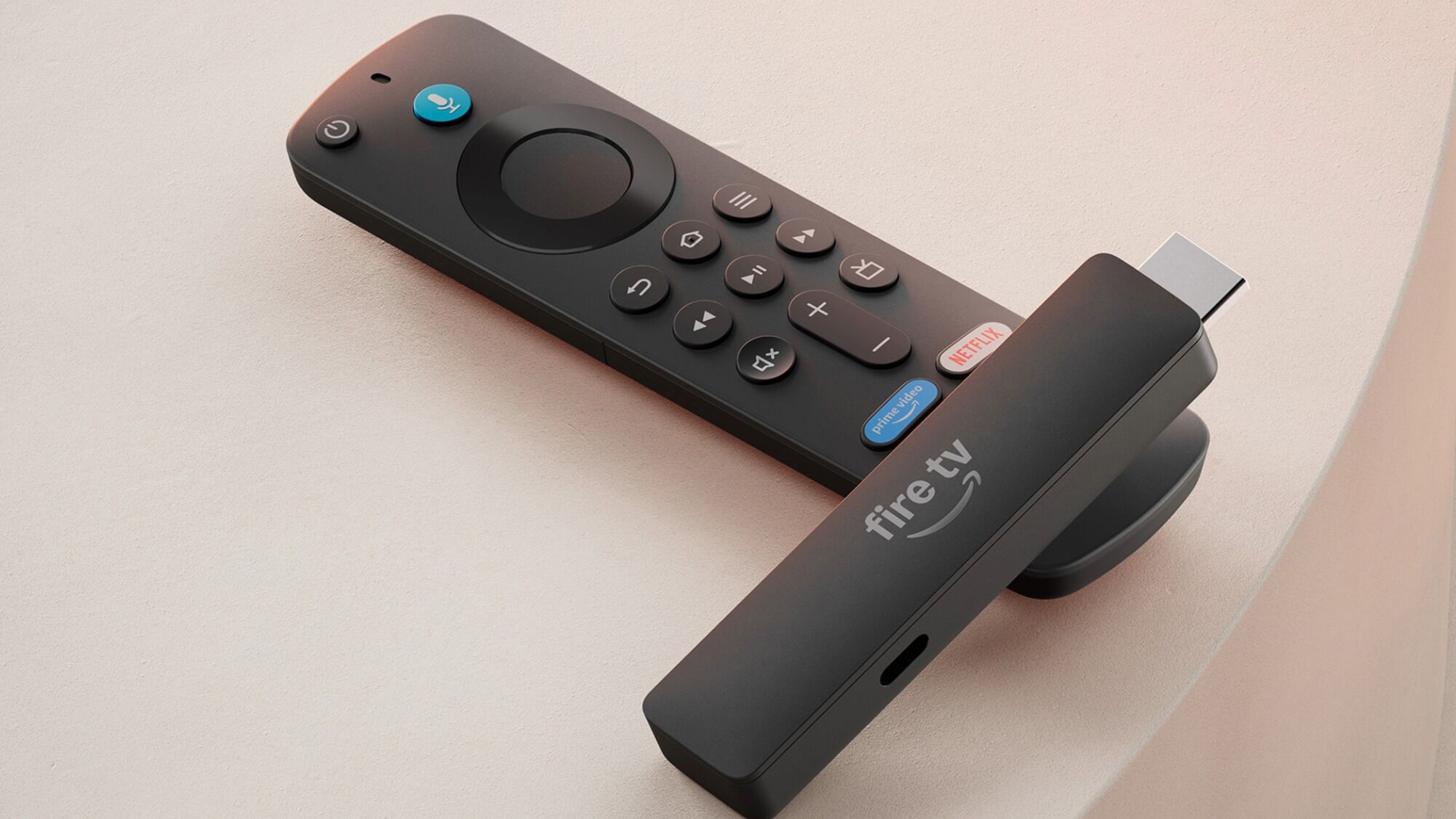
The Fire TV Stick is a small streaming device made by Amazon. It plugs into your TV’s HDMI port and connects to Wi-Fi. You can use it to watch movies, TV shows, sports, and more from different streaming apps. The device is popular because it’s affordable, easy to use, and works with many services around the world.
There are several versions of the Fire TV Stick, including the Fire TV Stick Lite, Fire TV Stick 4K, and Fire TV Stick 4K Max. The main difference is video quality and speed. For watching the FIFA World Cup, any version will work, but the 4K models are better if you want higher picture quality.
How The Fire Tv Stick Works
Once you plug the Fire TV Stick into your TV, you use a remote to choose apps and content. You need to connect it to Wi-Fi. The device lets you download apps from the Amazon Appstore, such as streaming platforms and sports channels.
A key feature is that the Fire TV Stick is portable. You can take it with you and use it on any TV with HDMI. This is helpful if you travel during the World Cup or watch games at a friend’s house.
Read More: Amazon Fire TV Stick 4K Vs 4K Max
Why Choose Fire Tv Stick For World Cup Streaming?
Many soccer fans use the Fire TV Stick because:
- It supports popular sports streaming apps.
- It works in most countries.
- It’s easy to set up and manage.
- It allows you to watch live and replay matches.
If you want flexibility and a simple way to watch every World Cup game, the Fire TV Stick is a strong choice.
Official Broadcasters For Fifa World Cup 2026
One important step is to know which channels or apps have the rights to show the FIFA World Cup 2026. Each country has different broadcasters, and many of them offer apps you can download on your Fire TV Stick.
Below is a comparison of official broadcasters in some key regions:
| Country/Region | Main Broadcaster | Streaming App Available? | Language Options |
|---|---|---|---|
| United States | Fox Sports, Telemundo | Fox Sports, Peacock | English, Spanish |
| Canada | CTV, TSN, RDS | TSN, RDS | English, French |
| United Kingdom | BBC, ITV | BBC iPlayer, ITVX | English |
| India | Sports18, JioCinema | JioCinema | English, Hindi |
| Australia | SBS | SBS On Demand | English |
| Germany | ARD, ZDF | ARD Mediathek, ZDF Mediathek | German |
These broadcasters will show live matches, highlights, and analysis. Most have apps you can install directly on your Fire TV Stick. The language options let you choose commentary you prefer.
“Amazon has launched a dedicated FIFA World Cup 2026 Hub on Fire TV devices, making it easier to stream all 104 matches directly from the home screen.”
Stream World Cup 2026 in 4K Ultra HD on FOX One, Fubo, and Peacock!
How To Find Your Country’s Broadcaster
If you’re not sure who has the rights in your country:
- Search “FIFA World Cup 2026 official broadcaster [your country]”
- Visit the FIFA website or check local sports news
Some regions may have more than one broadcaster, so you might have options for free and paid services.
Setting Up Your Fire Tv Stick For World Cup Streaming
Before the tournament starts, make sure your Fire TV Stick is ready. Here’s what to do:
1. Connect And Update
- Plug the device into your TV’s HDMI port.
- Connect it to Wi-Fi.
- Go to “Settings” > “My Fire TV” > “About” > “Check for Updates.” Install any updates to avoid bugs or compatibility issues.
2. Sign In To Your Amazon Account
You need an Amazon account to download apps. If you don’t have one, create it on your smartphone or computer. Sign in on the Fire TV Stick.
3. Install Streaming Apps
Go to the Appstore on the Fire TV Stick. Search for the app of your country’s official broadcaster (for example, “Fox Sports” or “BBC iPlayer”). Download and install.
If you’re in a region where the app is not available, you may need to use alternatives or adjust your location settings. More on this below.
4. Test The App
Open the app and sign in (if needed). Some apps require a subscription or cable login. Make sure you can access live sports content.
5. Adjust Video Settings
For the best quality, go to “Display & Audio” in Settings. Set the resolution to 1080p or 4K, depending on your TV and Fire TV Stick model. Turn on “HDR” for richer colors if your TV supports it.
6. Set Up Audio Preferences
If you want commentary in a different language, check if the app offers audio tracks. Some apps let you switch between languages during live matches.
Streaming Services Offering Fifa World Cup Coverage
Many streaming platforms have rights to show the FIFA World Cup. Some are free, others require a subscription. Here is a list of popular services for different regions:
- Fox Sports App (USA) – Offers live matches, highlights, and replays. Requires cable login or subscription.
- Peacock TV (USA) – Streams Spanish-language coverage via Telemundo. Monthly subscription.
- TSN App (Canada) – English coverage. Requires TSN subscription.
- RDS App (Canada) – French coverage. Requires RDS subscription.
- BBC iPlayer (UK) – Free for UK residents. Covers selected matches.
- ITVX (UK) – Free for UK residents. Covers selected matches.
- JioCinema (India) – Free streaming with ad-supported model.
- SBS On Demand (Australia) – Free streaming for Australian viewers.
- ARD Mediathek & ZDF Mediathek (Germany) – Free streaming for German viewers.
Each service has its own requirements. Some apps are geo-restricted, so you may need to use a VPN if you’re traveling or living abroad.
Subscription And Free Streaming Options
Below is a comparison of subscription and free streaming options for the World Cup:
| Service | Free? | Subscription Cost | Live Match Access | Language |
|---|---|---|---|---|
| BBC iPlayer | Yes (UK only) | Free | Selected matches | English |
| Fox Sports | No | $74.99/year (through Fox Sports app or cable login) | All matches | English |
| JioCinema | Yes (India only) | Free | All matches | English, Hindi |
| Peacock TV | No | $5.99/month | All matches (Spanish) | Spanish |
| SBS On Demand | Yes (Australia only) | Free | All matches | English |
| TSN | No | $19.99/month | All matches | English |
This table helps you compare options based on price, language, and match coverage.
How To Download Apps Not Available In Your Region
Sometimes, the app you want is not in the Amazon Appstore for your country. Here’s what you can do:
- Change your Amazon account country to the region where the app is available (instructions on Amazon’s help pages).
- Use a VPN on your Fire TV Stick to change your location. This lets you download region-specific apps.
- Sideload the app using APK files. This is more advanced and sometimes risky. Only download from trusted sources.
Many beginners miss the step of changing account region or using a VPN. It’s important for accessing the best streaming options.

Credit: www.youtube.com
Using Vpns For Accessing Restricted Content
A VPN (Virtual Private Network) is a tool that lets you change your internet location. If you want to watch World Cup matches from another country, a VPN can help. For example, if you’re in the US and want to watch BBC coverage, you can set your VPN to the UK.
Setting Up A Vpn On Fire Tv Stick
- Download a VPN app from the Appstore (such as ExpressVPN or NordVPN).
- Open the app and sign in.
- Choose the country where your preferred streaming app is available.
- Connect to the VPN. Your Fire TV Stick now appears to be in that country.
- Download and use the streaming app.
Some streaming services block VPNs, so test your setup before the tournament. Choose a VPN with good speed to avoid buffering.
Is Using A Vpn Legal?
Using a VPN is legal in most countries, but check local laws. Streaming services may restrict access if they detect VPN use. For official coverage, always use legal apps and respect terms of service.
Watching In Different Languages
The FIFA World Cup is a global event, and fans prefer watching in their own language. Many streaming apps offer multiple audio tracks or commentary options.
How To Change Language On Streaming Apps
- Open the app during a live match.
- Look for “Audio” or “Language” settings.
- Select your preferred language.
Some apps, like Peacock TV, focus on Spanish coverage. BBC iPlayer and ITVX are English only. JioCinema offers English and Hindi. For other languages, check your country’s broadcaster.
Subtitles And Accessibility
If you need subtitles, most apps offer them. Go to “Subtitles” in the app settings. You can choose closed captions for commentary or match details. This is helpful for non-native English speakers.
Tips For The Best Viewing Experience
Watching the FIFA World Cup is more fun when the picture is clear and the stream is smooth. Here are expert tips:
- Upgrade Your Internet: Streaming live sports needs fast internet. Aim for at least 10 Mbps for HD and 25 Mbps for 4K.
- Use Wired Connections: If possible, connect your Fire TV Stick to Ethernet (with an adapter). Wi-Fi can be unstable during peak hours.
- Close Background Apps: Other apps running on your Fire TV Stick can slow streaming. Close unused apps before watching.
- Adjust TV Settings: Set your TV to “Sports Mode” for sharper motion.
- Watch on 4K TV: If you have a 4K Fire TV Stick and 4K TV, you’ll get the best picture. But HD is still good for most fans.
- Set Up Surround Sound: For big matches, use a soundbar or external speakers. This makes the stadium atmosphere feel real.
Many beginners forget to test their setup before the tournament. Try streaming a live event to check for issues ahead of time.
Common Mistakes And How To Avoid Them
Even experienced fans make mistakes when setting up World Cup streaming. Here are the most frequent problems:
- Wrong App Region: Installing an app from the wrong region means you can’t access live matches. Always check your account region and use a VPN if needed.
- Slow Internet: Trying to stream on slow Wi-Fi leads to buffering and missed goals. Upgrade your internet or use a wired connection.
- Ignoring App Updates: Old apps may not work during the tournament. Update your apps before the first match.
- Not Checking Subscription Status: Some apps require active subscriptions. Make sure yours doesn’t expire during the tournament.
- Overlooking Language Settings: Missing the right commentary can ruin the experience. Set your language preference early.
- Forgetting Time Zone Differences: The World Cup schedule is global. Set reminders for match times in your local time zone.
A non-obvious insight: Many apps require authentication (like cable login) even for free streaming. Prepare your login details before the event starts.
Alternatives To Fire Tv Stick For World Cup Streaming
While the Fire TV Stick is popular, there are other devices you can use for streaming. Here’s a quick comparison:
| Device | Price Range | App Support | Picture Quality | Ease of Use |
|---|---|---|---|---|
| Fire TV Stick | $30–$60 | Wide | HD/4K | Easy |
| Roku Stick | $29–$49 | Wide | HD/4K | Easy |
| Apple TV | $129–$179 | Wide | HD/4K | Easy |
| Chromecast | $29–$69 | Wide | HD/4K | Medium |
The Fire TV Stick stands out for its price, app support, and easy setup. Roku and Chromecast are good alternatives, but some apps may be missing or harder to install.
Stream World Cup 2026 in 4K Ultra HD on FOX One, Fubo, and Peacock!
Legal And Safe Streaming Practices
Watching the World Cup should be fun and safe. Here’s how to avoid legal issues and protect your privacy:
- Use official apps from broadcasters. Avoid illegal streams; they often have poor quality and risk malware.
- Keep your Fire TV Stick software updated. Security patches protect against hacking.
- Use strong passwords for streaming accounts.
- If you use a VPN, choose a reliable provider with a no-logs policy.
An overlooked detail: Sometimes, free streaming links shared online are scams. Only use apps from the Amazon Appstore or official websites.
For more information on broadcasting rights and safe streaming, see the FIFA official site.
Credit: www.aboutamazon.com
Extra Features To Enhance Your World Cup Experience
The Fire TV Stick has features that can make watching the World Cup even more enjoyable:
- Alexa Voice Control: Use your remote to say, “Alexa, play World Cup live” to open apps or find matches.
- Multi-View Apps: Some streaming apps let you watch two games at once. Useful during group stages.
- Replay and Highlights: Missed a goal? Use apps that offer instant replays and highlights.
- Social Media Integration: Some apps let you share moments on Twitter or Facebook directly from your TV.
- Parental Controls: If you want to limit viewing for kids, set up parental controls in the Fire TV Stick settings.
These features are often missed by beginners. Explore app menus before the tournament to get the most out of your device.
Troubleshooting Streaming Issues
Live streaming can sometimes fail. Here’s how to fix common problems:
Buffering Or Freezing
- Check your internet speed.
- Restart the Fire TV Stick.
- Close unused apps.
- Move closer to the Wi-Fi router or use Ethernet.
App Not Working
- Update the app from the Appstore.
- Uninstall and reinstall the app.
- Check if the app is down (search “Fox Sports outage” or similar).
Audio Or Picture Problems
- Adjust video and audio settings in the Fire TV Stick menu.
- Switch HDMI ports or cables.
- Restart your TV and device.
Vpn Not Connecting
- Update your VPN app.
- Try a different server location.
- Contact VPN support.
If problems persist, contact Amazon support or your streaming app’s help center.
Planning Ahead: World Cup Schedule And Match Times
The FIFA World Cup runs for about a month, with matches every day. The schedule is released a few months before the tournament. Here’s how to stay updated:
- Download the official FIFA app (if available on Fire TV Stick).
- Subscribe to your broadcaster’s newsletter.
- Use Google Calendar to set match reminders.
Remember: Matches may be at odd times due to time zone differences. Plan ahead to watch your favorite teams.
A practical tip: Set up multiple reminders—one on your TV, another on your phone—to avoid missing key games.
Frequently Asked Questions About Watch FIFA World Cup on Fire Tv Stick 2026
How Can I Watch The Fifa World Cup On Fire Tv Stick For Free?
You can watch for free if your country has a free broadcaster with a streaming app, such as BBC iPlayer (UK) or SBS On Demand (Australia). Download the app and sign in. If your region doesn’t offer free access, you may need a subscription or use a VPN to access free apps from other countries.
Do I Need A Vpn To Stream The Fifa World Cup On Fire Tv Stick?
A VPN is helpful if you want to access apps or streams not available in your country. For example, if you’re abroad and want to watch coverage from your home country. However, always check the legality and terms of service for each app.
What Internet Speed Is Best For Streaming World Cup Matches?
For smooth HD streaming, aim for at least 10 Mbps. For 4K streaming, 25 Mbps or higher is recommended. Slow internet can cause buffering or poor picture quality.
Can I Change The Language Of Commentary On Fire Tv Stick Apps?
Most official streaming apps offer multiple language tracks. Go to the app’s settings during a live match and choose your preferred language. If the app doesn’t offer your language, try another broadcaster’s app.
What Should I Do If My Streaming App Crashes During A Match?
Restart your Fire TV Stick and reopen the app. Check for app updates. If the problem continues, uninstall and reinstall the app. Make sure your internet connection is stable. Contact customer support if needed.
Final Thoughts on How to Watch FIFA World Cup on Fire Tv Stick 2026 Free
Watching the FIFA World Cup 2026 on a Fire TV Stick is simple if you prepare ahead. Find out which apps and broadcasters are available in your country, set up your device, and test your streaming before the tournament starts.
Use a VPN if you need to access region-locked content, but always choose legal and safe options. Adjust settings for the best picture and sound, and explore extra features like voice control and highlights. Plan your schedule, set reminders, and avoid common mistakes.
With the right setup, you’ll enjoy every goal, save, and celebration from the world’s biggest soccer event right from your home.
Disclosure: As an Amazon Associate, I may earn from qualifying purchases at no extra cost to you. Amazon and the Amazon logo are trademarks of Amazon.com, Inc, or its affiliates.
